
Solving Login Lockouts
Immediate Recovery
This guide focuses on the operational steps to restore account access for employees who have failed their 2FA setup.
By using the new management facility, administrators can bypass manual helpdesk tickets and resolve lockouts in under 60 seconds.
Access Control & Permissions
Access to Two-Factor Authentication Management has already been automatically provided to Authorized Admins with access in System Admin.
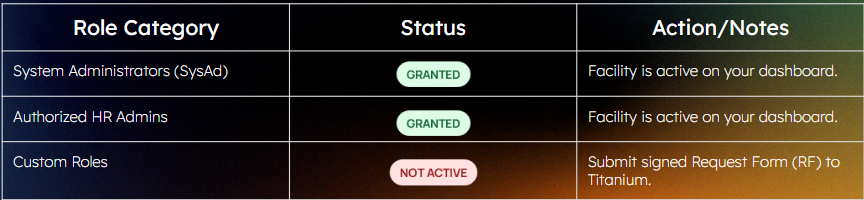
Where to find the Tool?
To locate the management interface, follow this visual path in your administrator account:
- Go to Profile Name
- Select Admin
- Select the tab of “Two-Factor Authentication Management”

Administrative Workflow

The Interface
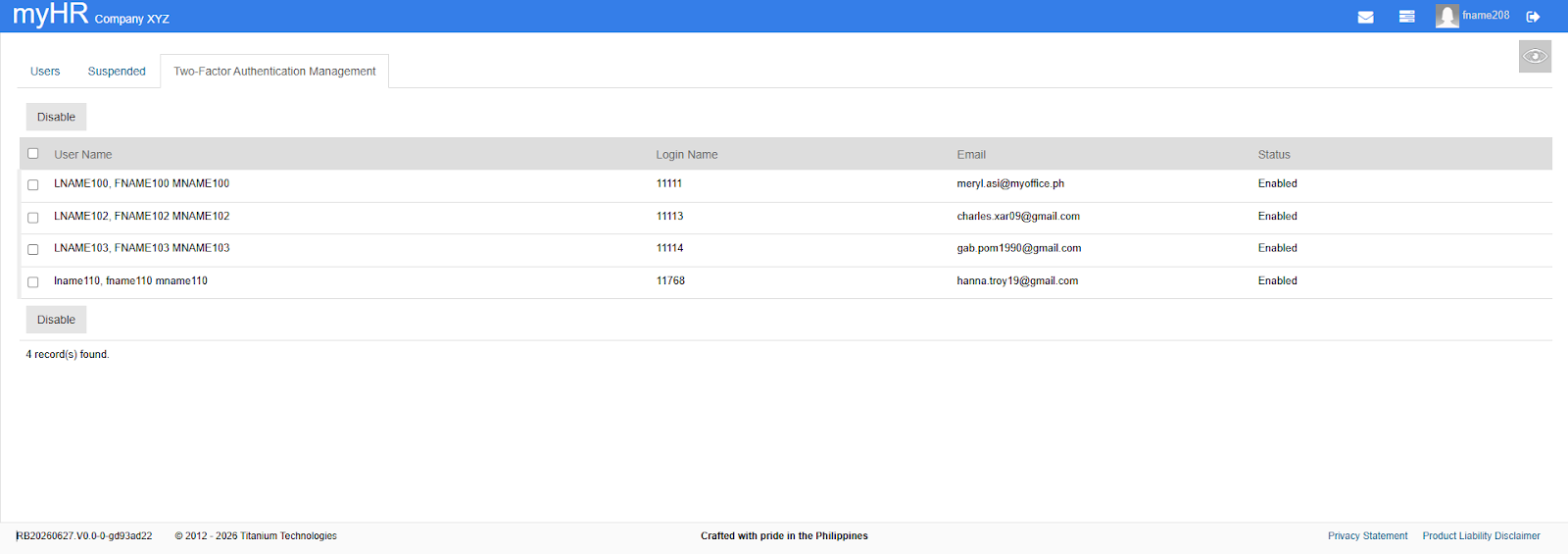
- Tick Boxes: Select individual employee rows or use the header box to "Select All".
- Employee Details Displayed:
- Employee Name
- Login Name
- Registered Email Address
- "Disable" Button: Used to trigger the security reset for selected profiles.
Managing User Profiles
The "Disable" Function
The monitoring dashboard displays all employees with active
security statuses.
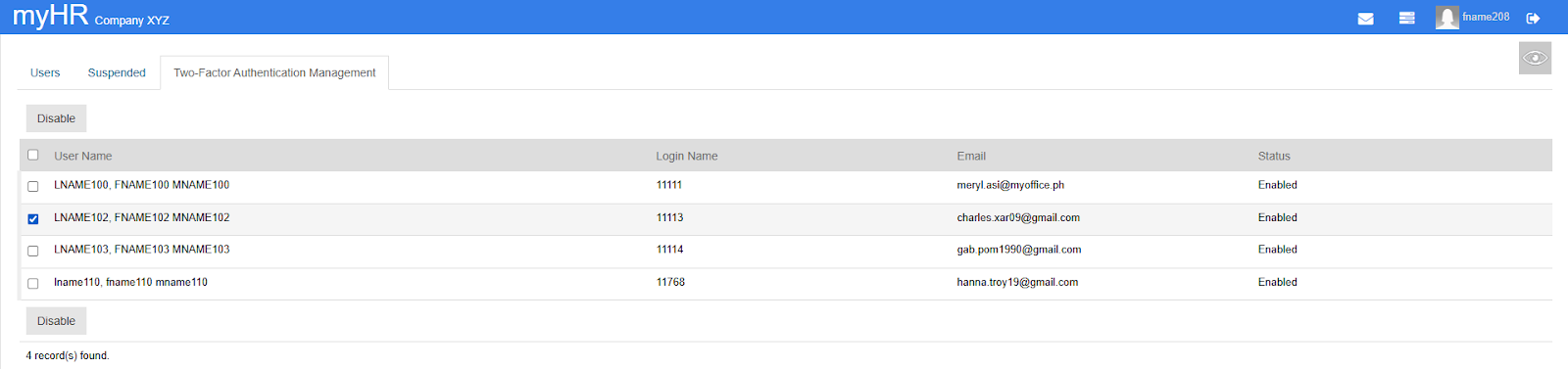
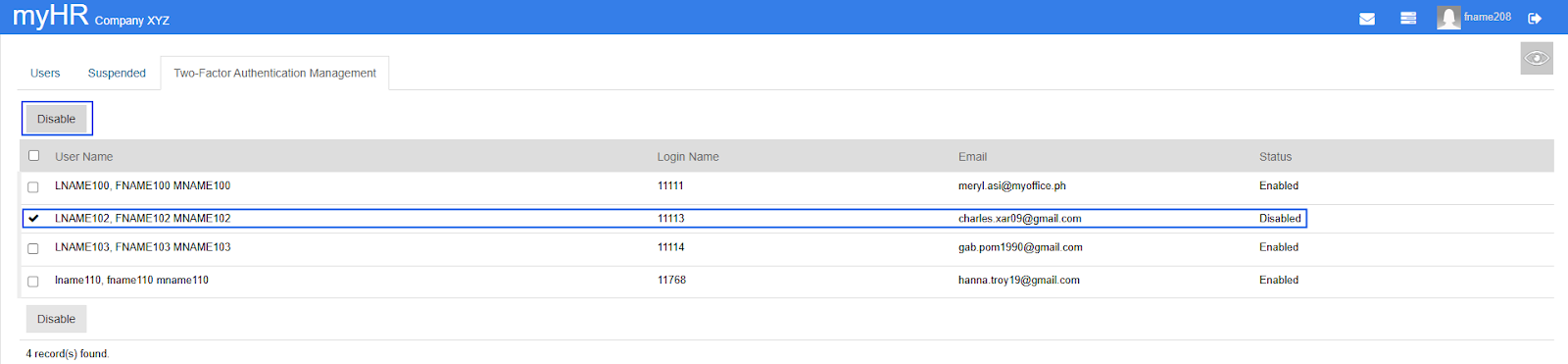
To Reset: Tick the box next to the employee's name and click the primary Disable button at the top or bottom of the list.
Visual Walkthrough: How to Reset/Disable Employee 2FA
What the Employee Sees?
1. Access Email
User receives a secure email with a system-generated Temporary Password.
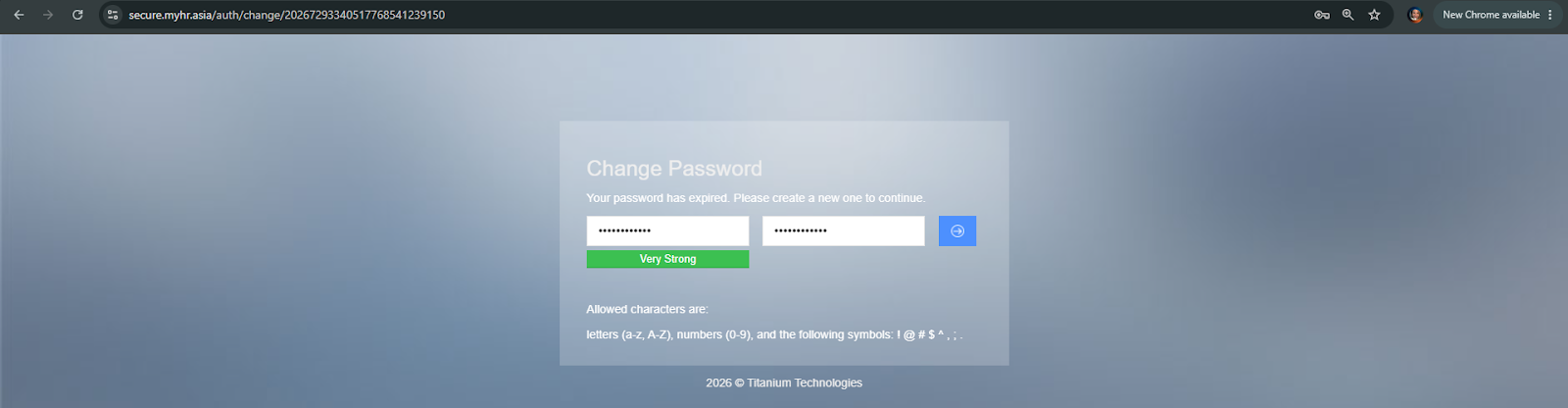
2. Rotate Login
User logs in and is forced to nominate a New Permanent Password.
3. App Setup
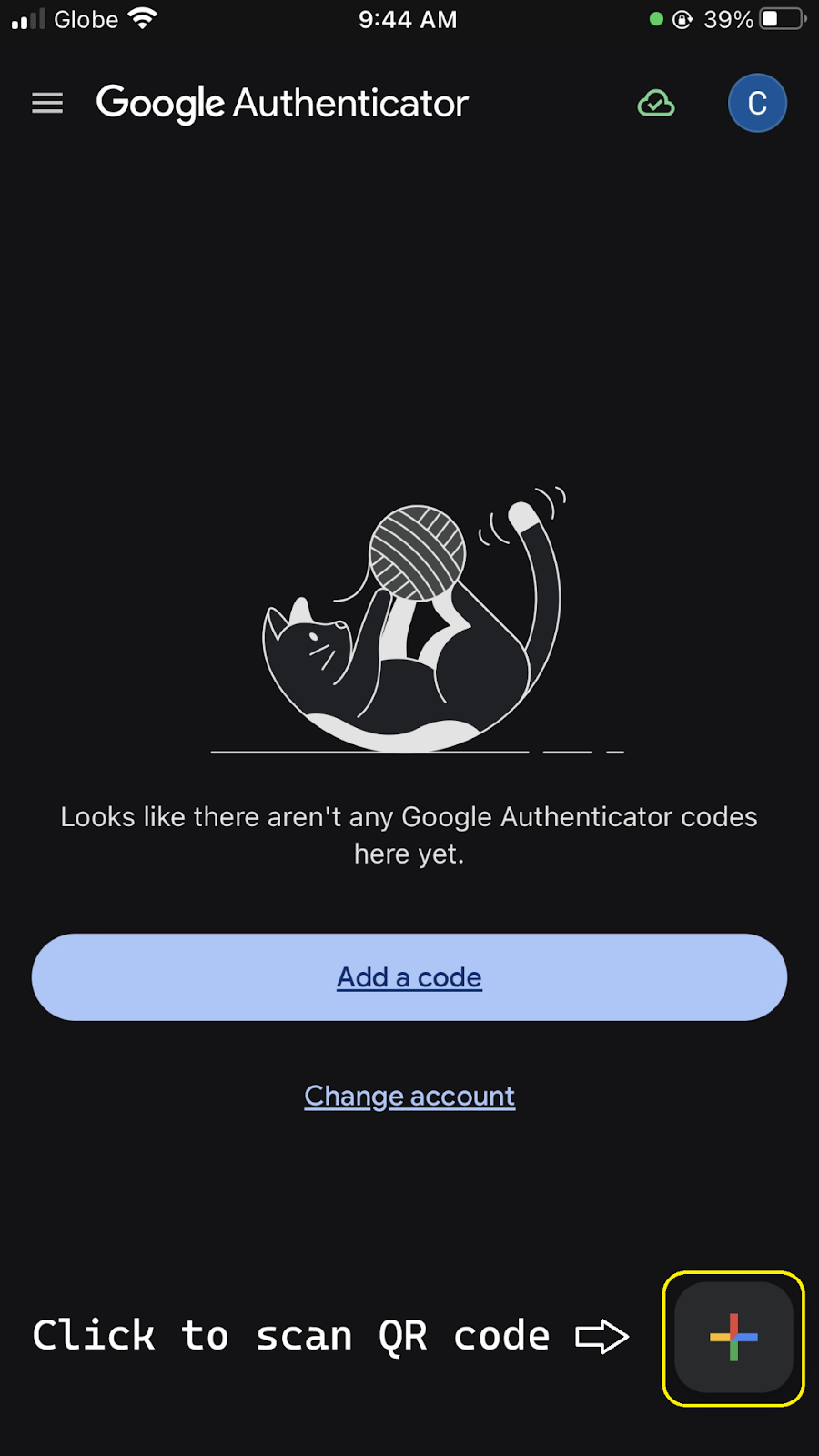
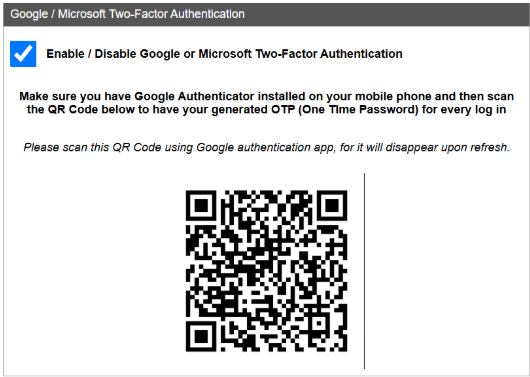
A fresh QR code is displayed for scanning into their mobile app.
Why this is Better?
- Sign-off Logic
- The system remains "Disabled" until the first successful code entry. This prevents partial setup lockouts.
- Audit Trails
- Every reset is logged. You can view who performed the reset and when it happened via the Event Log or Audit Trail Report.
- Self-Service
- Reduces HR workload on security-related helpdesk inquiries.
Automated System Responses
What Happens Behind the Scenes?
- Credential Wipe: The system instantly deletes the active Secret_Key and expires the current password.
- Status Demotion: 2FA_Status shifts to Disabled, allowing the user to bypass the 2FA login prompt on their next attempt.
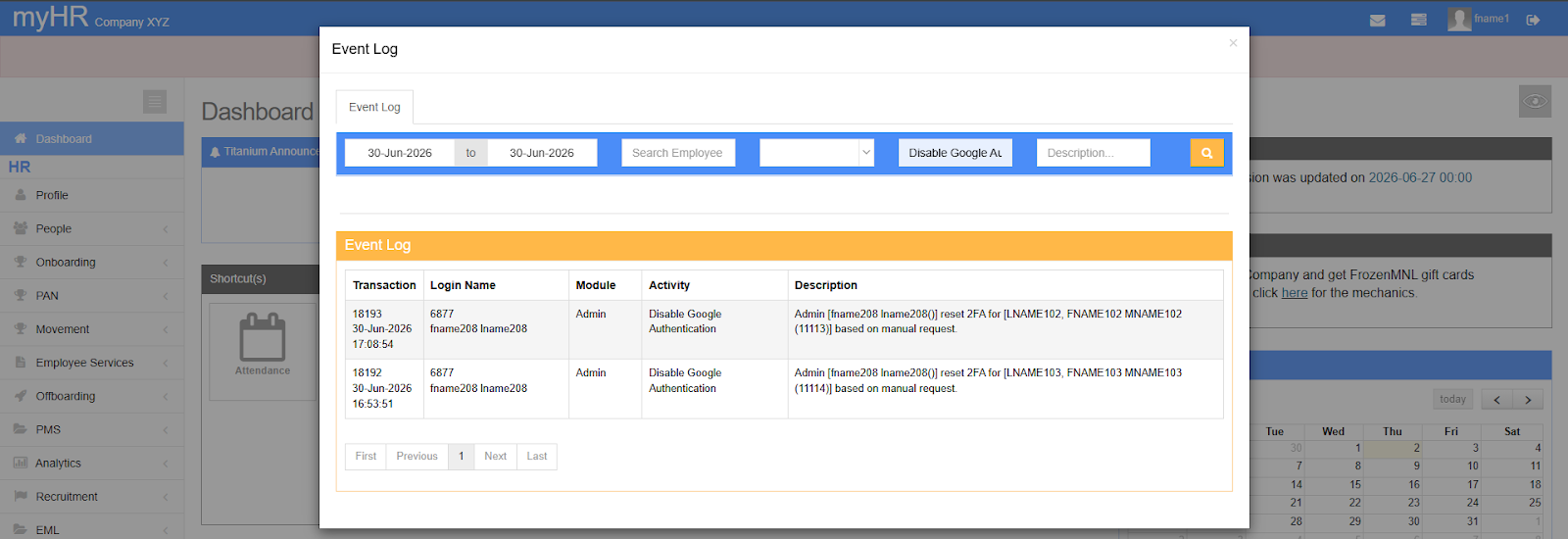
- Audit Logging: An unalterable trail is logged:
- Admin [Admin Name (ID)] reset 2FA for [Employee Name (ID)] based on manual request.
- Email Dispatch: An automated email with temporary credentials goes to the employee's inbox.
Audit Logging: (Eventlog)
Admin reset the employee’s 2FA
Audit Logging: (Audit Trail Report)
Admin reset the employee’s 2FA

Recovery Email Notification
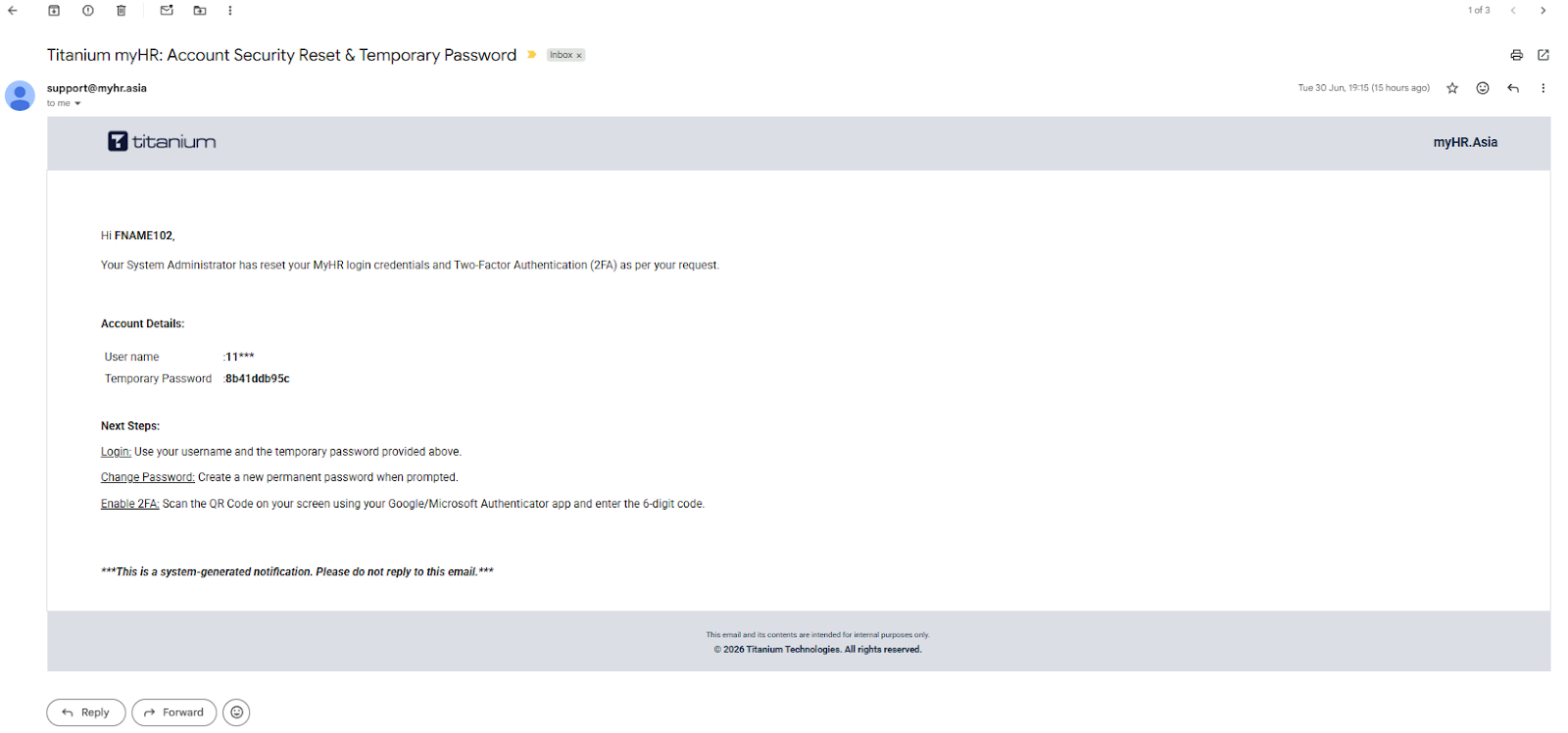
Employee Notification Email Template
Subject: Titanium myHR: Account Security Reset & Temporary Password
Body Text:
Hi [Employee Name],
Your System Administrator has reset your MyHR login credentials and Two-Factor Authentication (2FA) as per your request.
Account Details:
User name :11***
Temporary Password :8b41ddb95c
Next Steps:
Login: Use your username and the temporary password provided above.
Change Password: Create a new permanent password when prompted.
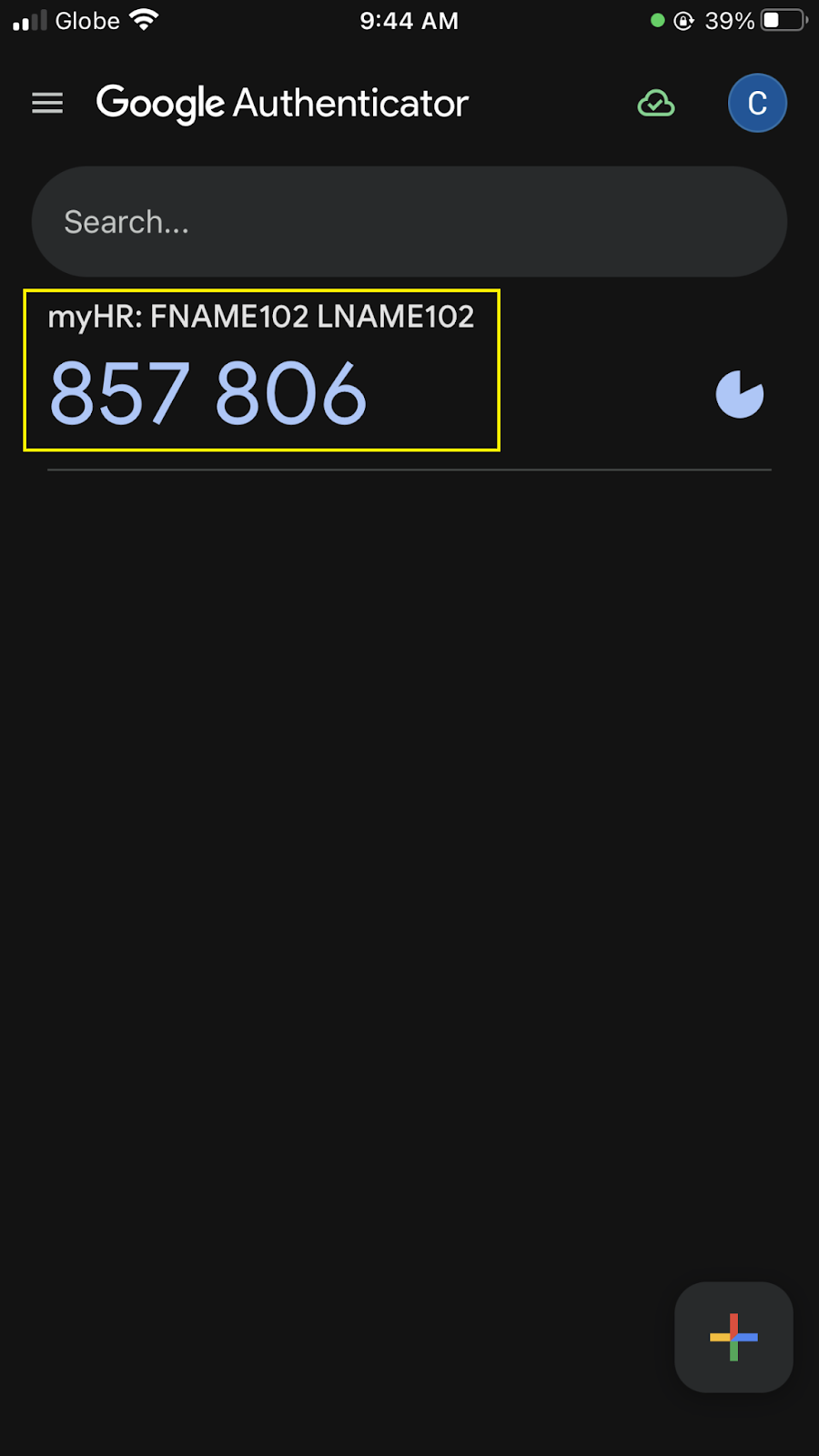
Enable 2FA: Scan the QR Code on your screen using your Google/Microsoft Authenticator app and enter the 6-digit code.
Employee Notification Email
Employee Recovery Path
- Employee Re-enrollment Sequence
- Flowchart / Steps:
- Step 1: Initial Login > User enters Username and the Temporary Password.
- Step 2: Password Rotation > System forces the creation of a new, permanent password.
- Step 3: App Linkage > A fresh QR code displays on screen. Employee opens Google or Microsoft Authenticator, taps (+), and selects Scan a QR code.
Admin Notice:
Instruct the employee to check their inbox and complete the setup immediately. Remind them that if they abandon the session midway or let the temporary password expire, the system will stall, requiring you to perform another reset.
Step 1

Step 2

Step 3
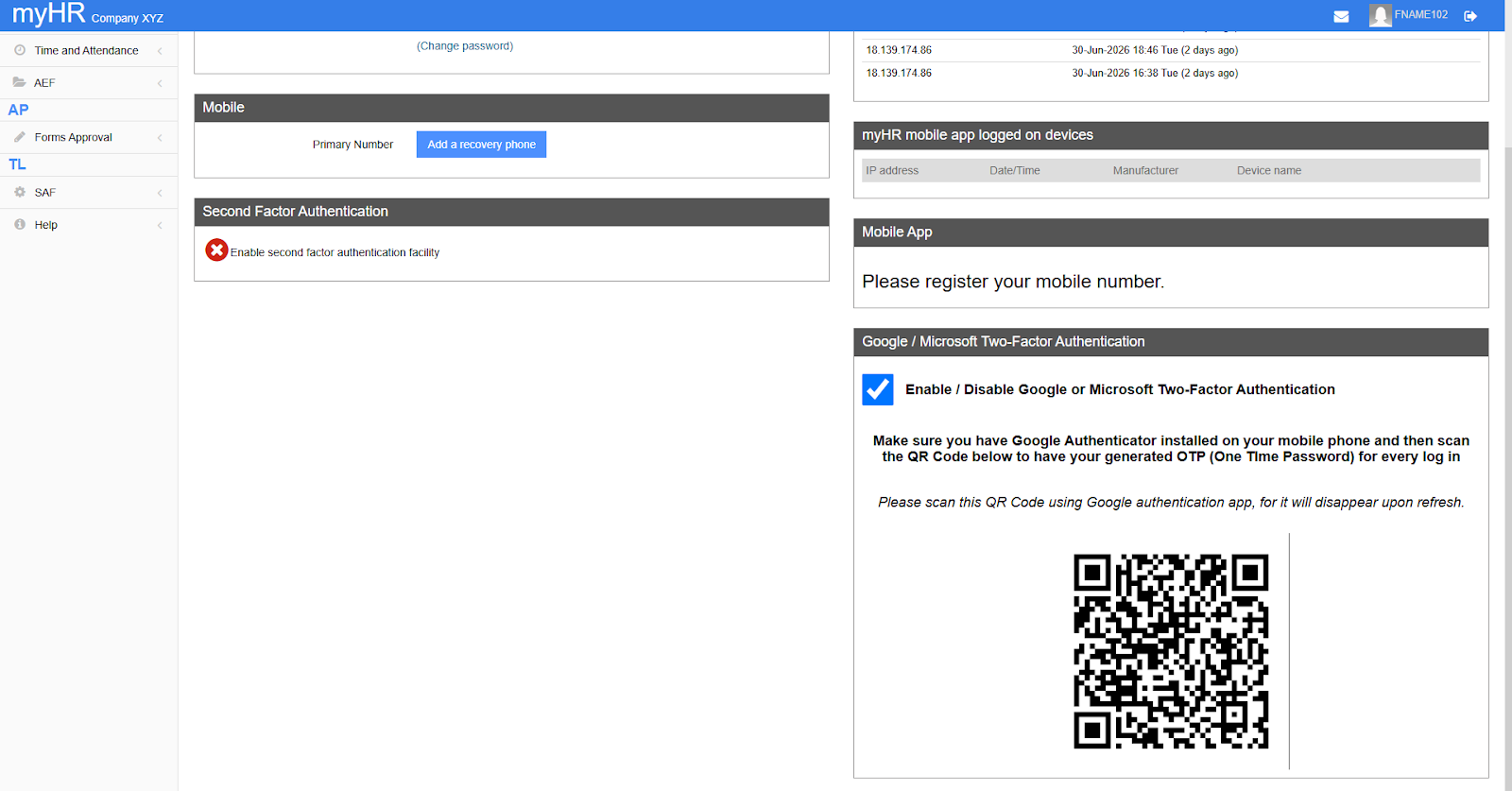
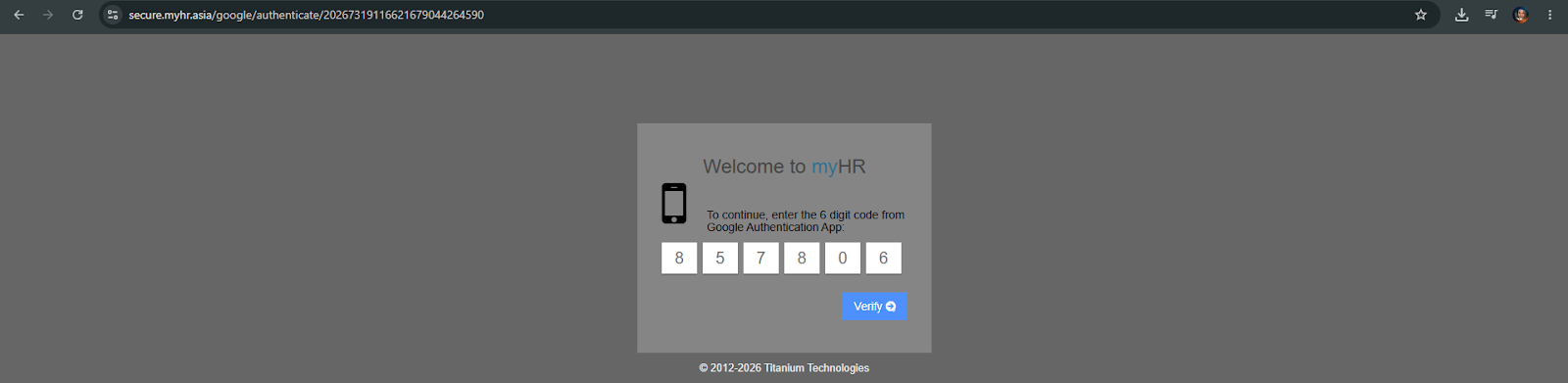
Sample login after complete re-enrollment

For downloadable User Guide, refer to the attached file: 2FA Management Facility - Detailed myHR Guide. 2026 (Titanium)